Note: Screenshots in this documentation show our white-label platform interface. Your Sokka Reviews dashboard has identical features and functionality with Sokka branding.
Manage incoming testimonials
Sokka Reviews provides a simple but powerful dashboard for monitoring your incoming testimonials. This guide discusses how it all works.
Firstly, head to thetestimonials page.
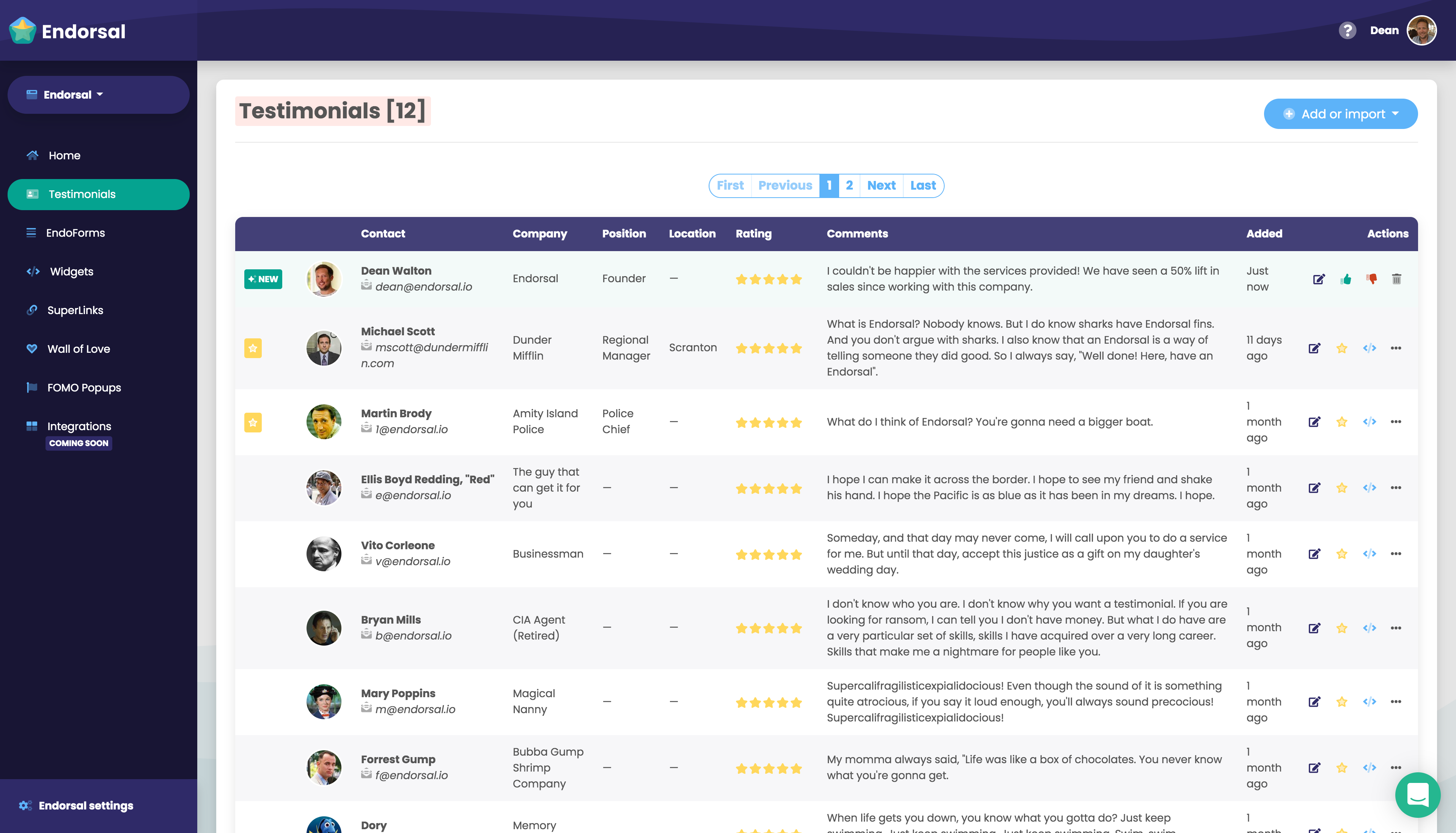
All new testimonials will appear at the top of your list until they've beenapproved,rejectedordeleted.
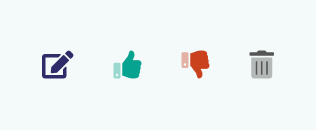
You'll notice these buttons in the "Actions" column (edit, approve, reject, delete). They are used to perform corresponding actions on individual testimonials.
Once a testimonial has been approved, the action buttons change to the following (edit, feature, embed, more):
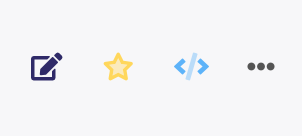
Most of the actions are self-explanatory, however I'll go into detail for theedit,featureandembedoptions:
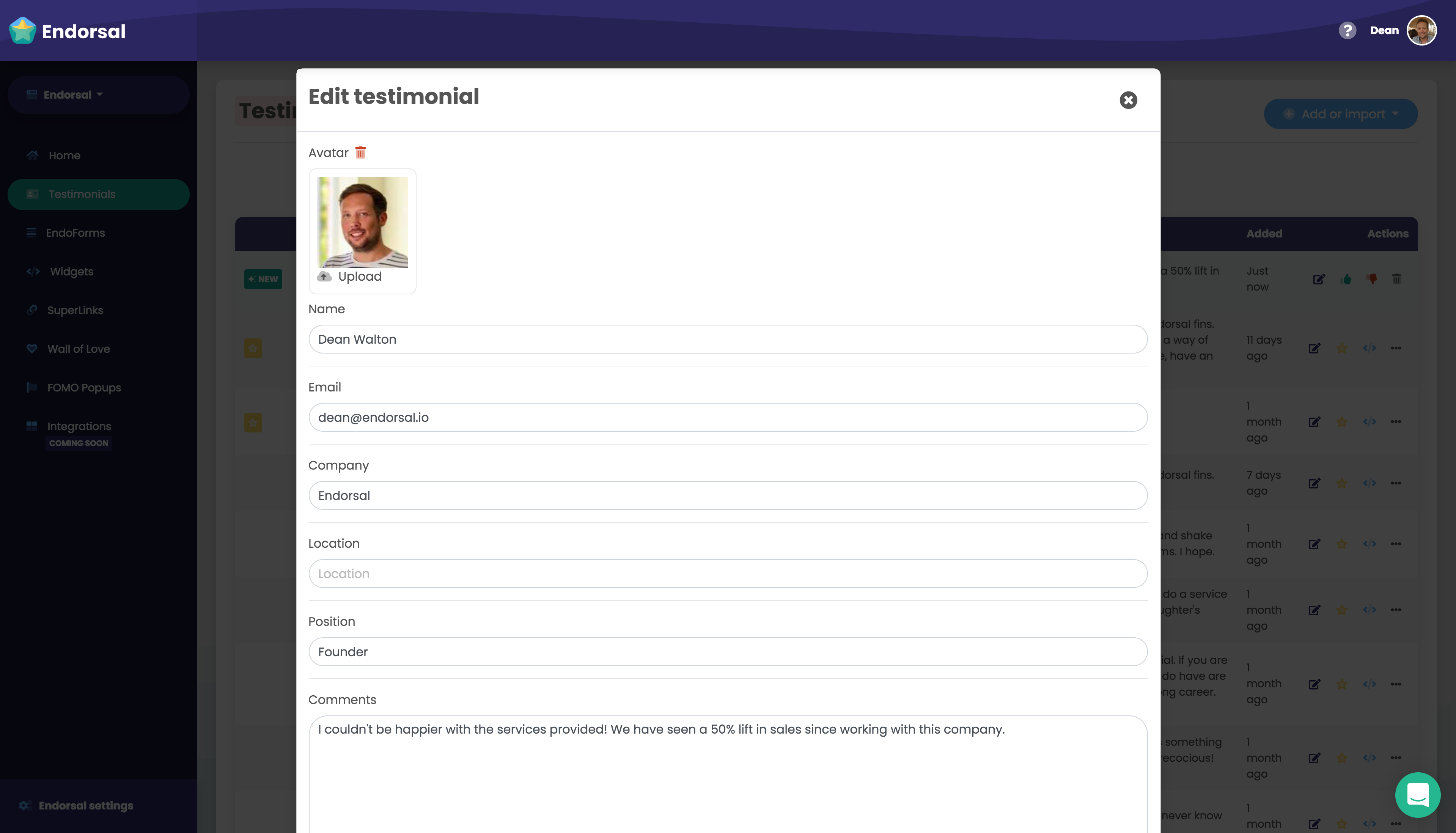
Edit testimonial
Clicking on the "Edit" icon brings up the testimonial editor. Here you can edit most fields (rating is excluded) in order to correct spelling mistakes or upload a new avatar.
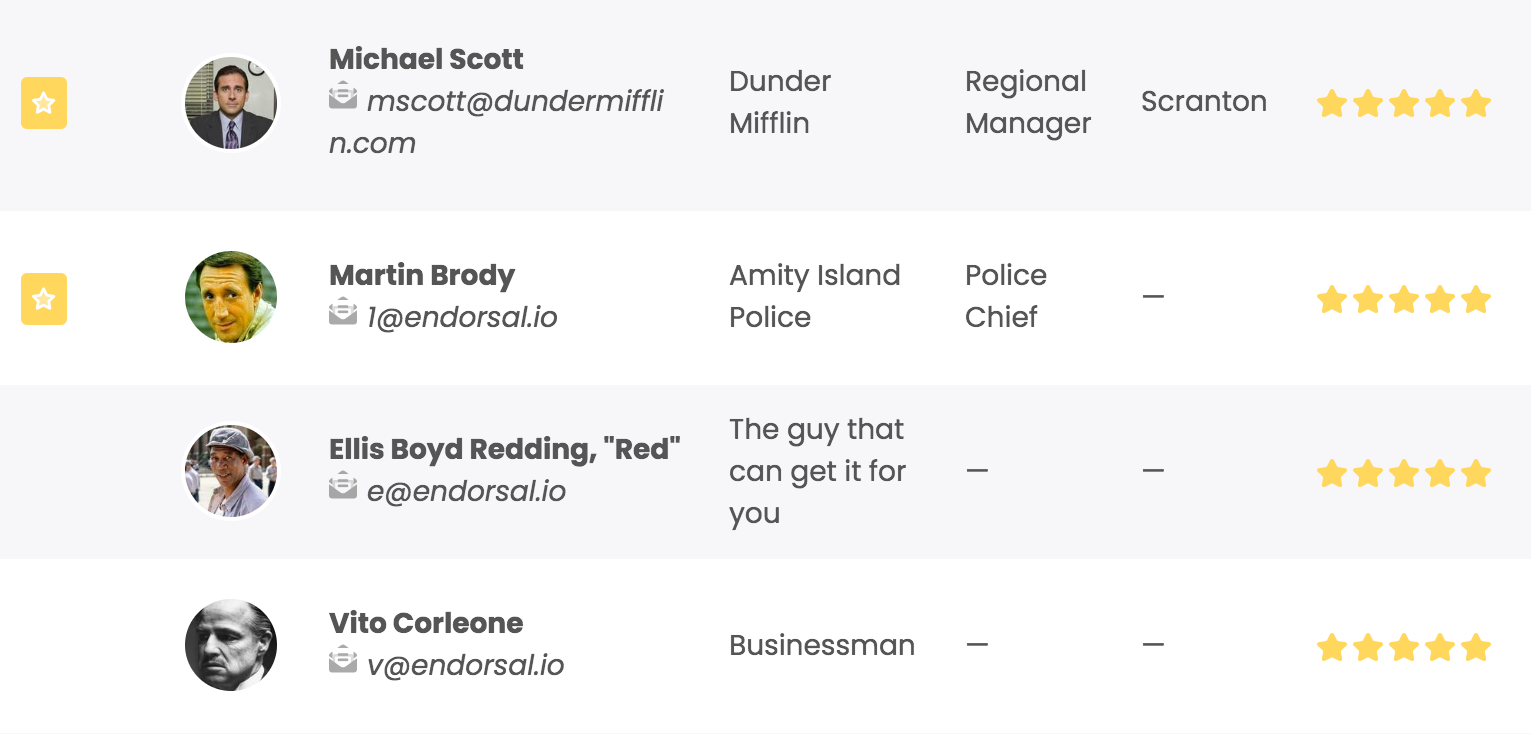
Featured testimonials
By clicking on the "Feature" icon (star), you can set a testimonial to featured status. This essentially pushes the testimonial to the top of the list and will be displayed first on your widgets.
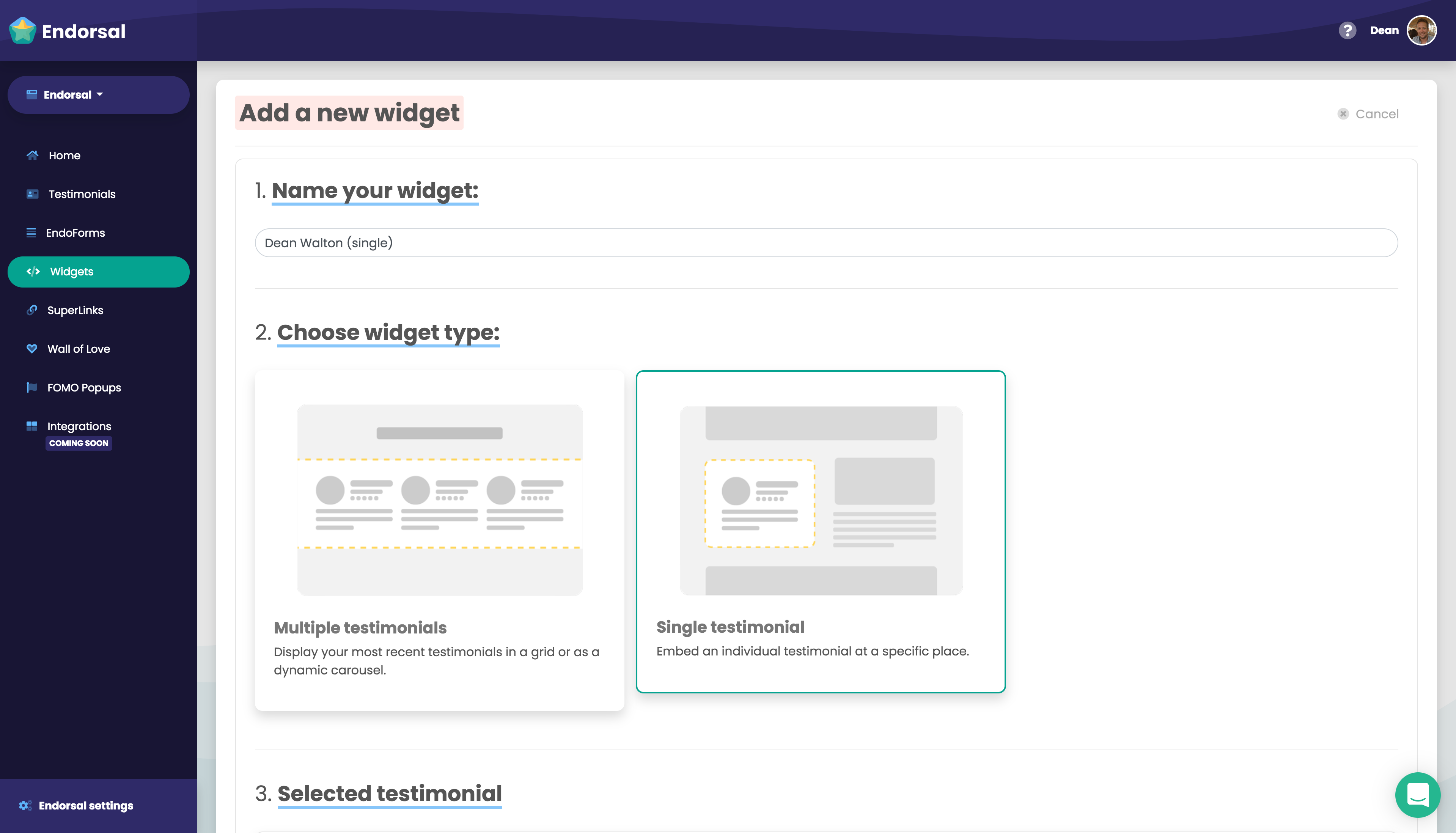
Embed testimonial
Clicking the "Embed" icon will allow you to create a new widget that displays only selected testimonial. This is a powerful feature for when you have a specific testimonial in mind for a part of your website, and a great tool for increasing conversions.
That's a quick overview of the testimonials page. If you have any further questions,please get in touch!